

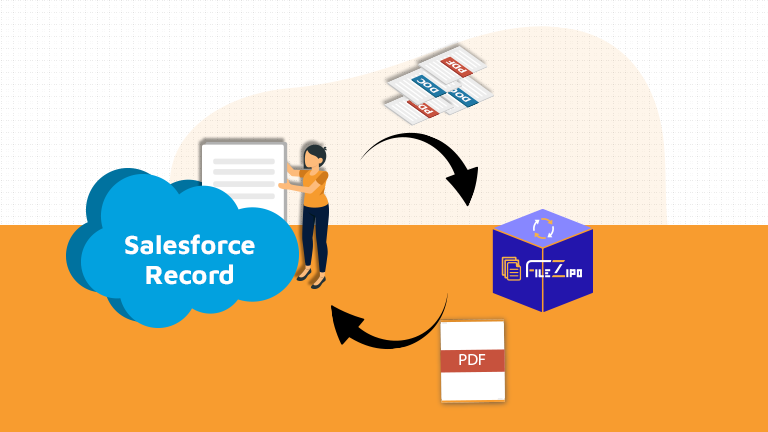
In Salesforce, it’s common for a single record — like an Account, Opportunity, or Vendor — to accumulate multiple files and attachments over time. Whether they’re invoices, contracts, reports, or supporting documents, having all of these scattered files makes it hard to share, archive, or communicate a complete record package.
Unfortunately, Salesforce doesn’t offer a built-in way to merge multiple files or attachments into a single PDF document. This often forces users to download files one at a time, merge them manually using external tools, and then re-upload the final PDF — a slow, error-prone process.
With Filezipo, you can merge multiple files and attachments of an individual Salesforce record into one consolidated PDF — directly within your Salesforce org and in just a few clicks. This capability eliminates tedious manual steps and helps teams work faster and more efficiently.
In this guide, we’ll walk through how to use Filezipo to merge files for an individual record, cover common use cases, and highlight practical scenarios where this can save time and improve productivity
Few Simple Steps to Merge multiple files or attachments into a single PDF:
Step 1:- Open “File ZIPO” application and you will be directed to its home page. Click on “Features” Tab & open “Merge Files Features”. Now click on highlighted Text “Read More” as shown below

Step 2:- Once “Read More” is clicked, it will open a model box with an instructions to add a “Quick Action (Button)” on the Object’s record page. (Ignore this step if Quick Action is already added on Object)

Step 3:– Once all the steps are completed (as described in step 2), Please add the Quick Action button on the Object Record Page and you are ready to Merge Multiple PDF / Doc files into Single PDF.
Let’s take an example of the Account object’s record page to “Merge Files on a Individual Record”
Step 1: Sample Account Record Page – Click on the “Merge File” button (as added in above steps) in Quick Action buttons bar (as highlighted in below image)

Once this button is clicked, it will open a Model Popup with list of files or attachments (PDF or Docs) related to record:

Above image has some features (each number has its description as below):
- Select the Checkbox in front of each row.
- Click on Continue Button.
Step 2: Once “Continue” Button is clicked, a popup will open like the below image:-

Above Image has some features (each number has its description as below):
- Enter the Name (Name of user who is performing this merge).
- Enter the name of File (Name of the Merged File)
- Enter e-mail address (Email Address on which user want to receive the Merged File)
- Enter CC e-mail address (Email Address of logged in user)
- Type of Merged Actions
-
- Send Merged File on Email
- Display Download link for merged file in same popup
- Save Merged File as “File / Attachment” on Same Record
- Save Merged File to “External Account” like Google-Drive
Let’s explore each type of Merged actions (A to D) one by one:
Action A:- Send Merged File on Email
In this action, the merged file will send on e-mail addresses entered by user in popup. Once an email is received, user can clicked on “Download” link to download merged file. (Sample Email Image)

Action B:- Display Download link for merged file in same popup
Once the “Merge File” button is clicked, the user will receive the “Download” link to directly download the merged files, once the process to Merge File is successfully completed.

Action C:- Save Merged file as File on save record:-
Once the “Merge File” button is clicked, the user will see (once the process to Merge File is successfully completed) the “Save as File” link to directly save the merged files on Same Record

Action D:- Save Merged file as file on External Account:-
Once the “Merge File” button is clicked, the user will see an option to choose the “Google Drive Account” on which we need to save Merged file.

Once the process to Merge File is successfully completed, the file is directly saved to “External Google Drive Account” and user will see an option to “View/Open File”

***************************************************************************************************
Have you started using FileZIPO yet? Get this revolutionary application and make your Salesforce file storage effortless and pocket-friendly. Click here to install the latest version of FileZIPO application in your Salesforce instance & explore its complete benefits for you.
For any queries or suggestions, you can contact us at https://filezipo.io/#contact or mail us: support@ayansoftwares.com. Our File ZIPO Expert will help you get the best out of it.
We appreciate your valuable inputs.
This tool is available on Appexchange and Click on below button to install the
latest version of File ZIPO
Our other Salesforce Product

